Fixing 'Container Failed to Start' on Google Cloud Run
Cloud Run's most common error has a small set of causes. This guide walks through each one and the fix.
· BuildRescue Engineering
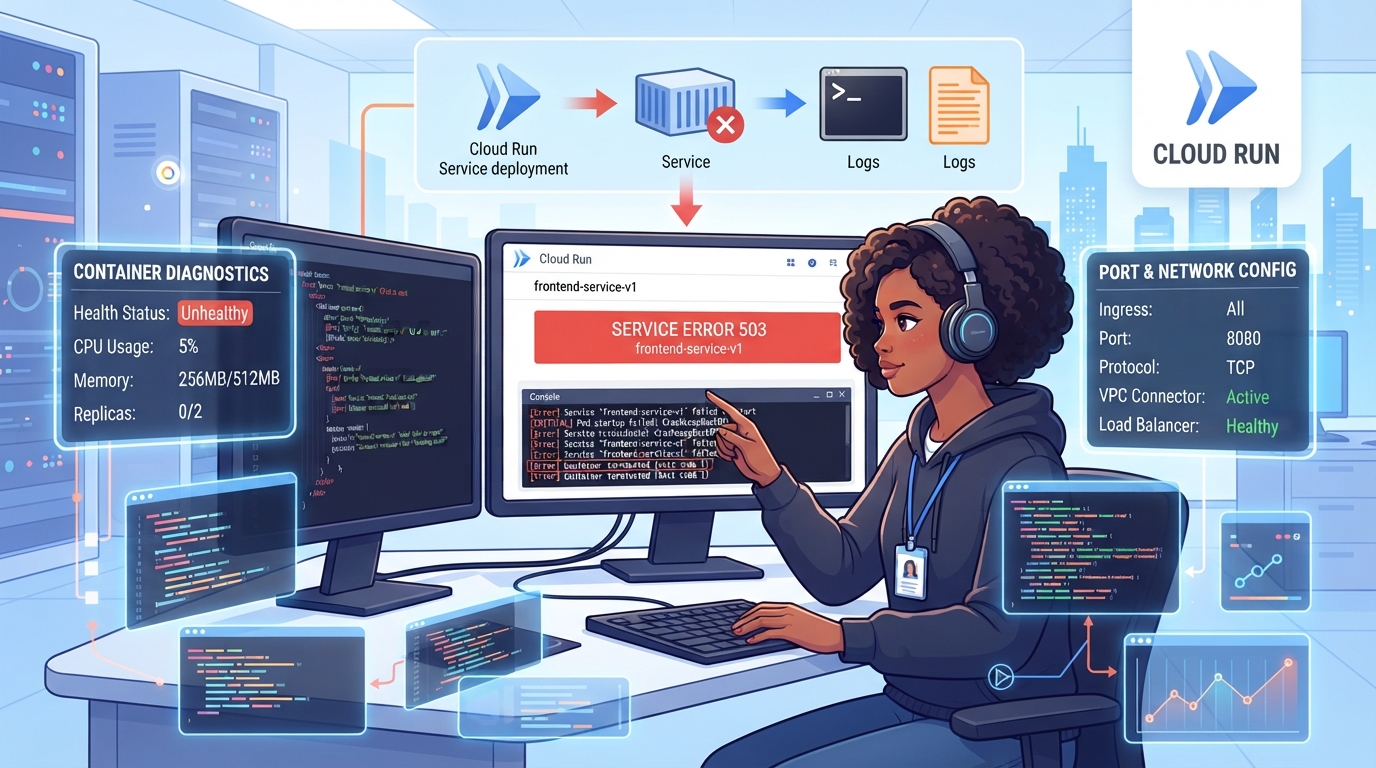
Understanding the 'Container Failed to Start' Error
The 'container failed to start' error in Google Cloud Run often puzzles developers, as it can stem from multiple underlying issues. At its core, this error indicates a failure in the initialisation process, commonly linked to misconfigured port settings or startup scripts.
In the context of Cloud Run, which relies on container orchestration, a port mismatch is a frequent culprit. This occurs when the container attempts to bind to a port differing from the one specified in the service configuration.
Furthermore, issues in the startup command or environment variables can lead to similar failures, preventing the container from reaching a ready state.
Common Misconfigurations Leading to Startup Failures
Several common misconfigurations can lead to startup failures on Cloud Run, frustrating developers and delaying deployments. Incorrect port settings in your Dockerfile or Cloud Run service settings are often to blame. Additionally, errors in the Dockerfile such as missing 'EXPOSE' instructions can prevent the container from properly communicating with Cloud Run.
Environment variable mismatches can further complicate the startup process, as can incorrect entry points that fail to execute the intended application commands.
- Incorrect port settings in the Dockerfile
- Missing or incorrect 'EXPOSE' command
- Mismatched environment variables
- Faulty startup commands or entry points
- Incomplete or erroneous configuration files
Diagnosing Startup Errors Step-by-Step
Diagnosing startup errors in Cloud Run requires a methodical approach to pinpoint the exact issue. Start by examining the error logs provided by Cloud Run; they often contain hints about what went wrong during initialization. Check the port configurations in your service settings and Dockerfile to ensure they align.
Next, verify the correctness of environment variables and their values. If the issue persists, review the Dockerfile for any missing instructions or syntax errors, and confirm that the startup command is functioning as intended.
- Review Cloud Run error logs for initialization hints
- Ensure port settings match between Dockerfile and service
- Verify environment variables for correctness
- Inspect Dockerfile for missing or incorrect instructions
- Check startup command execution and outputs
Resolving the Error: Practical Fixes
Once the root cause of the startup error is identified, implementing practical fixes can resolve the issue. Correct any port mismatches by updating your service settings and Dockerfile to use the same port number. Add or correct 'EXPOSE' instructions in the Dockerfile if missing. Ensure all environment variables are correctly defined and match expected values.
Adjust the startup command to ensure it properly initiates the intended application layer and confirm that all required configurations are in place.
- Align port numbers in service settings and Dockerfile
- Add missing 'EXPOSE' instructions if necessary
- Synchronize environment variable definitions
- Refine startup commands for correct execution
- Verify comprehensive configuration alignment
Validating the Fix and Ensuring Future Stability
After applying the fixes, it’s essential to validate their effectiveness to ensure the container starts without errors. Deploy the updated container to Cloud Run and monitor its logs for any recurring issues. Conduct thorough testing under varying conditions to confirm stability.
Additionally, implement practices such as regular code reviews and automated testing to catch potential misconfigurations early, reducing the likelihood of similar errors in future deployments.
Frequently asked questions
What port should my Cloud Run container listen to?
- Your Cloud Run container should listen to the port specified in the 'PORT' environment variable, which is automatically set by Cloud Run. Typically, you should configure your container to default to this environment variable to ensure compatibility.
How do I diagnose a container startup error?
- Diagnosing a container startup error involves checking the Cloud Run error logs, verifying port settings, ensuring environment variables are correct, and inspecting the Dockerfile for misconfigurations. A systematic approach helps identify the root cause efficiently.
Can Dockerfile errors cause Cloud Run startup issues?
- Yes, errors in the Dockerfile, such as missing 'EXPOSE' instructions or incorrect syntax, can prevent a container from starting properly in Cloud Run. It's crucial to ensure the Dockerfile is correctly configured to avoid startup failures.
What are common fixes for Cloud Run container failures?
- Common fixes include aligning port numbers between the Dockerfile and service settings, correcting 'EXPOSE' instructions, synchronizing environment variables, refining startup commands, and ensuring comprehensive configuration alignment.
How to prevent future Cloud Run deployment errors?
- Preventing future errors involves implementing regular code reviews, automated testing, and thorough logging during development and deployment processes. Staying vigilant with configuration changes can also help maintain stability.